
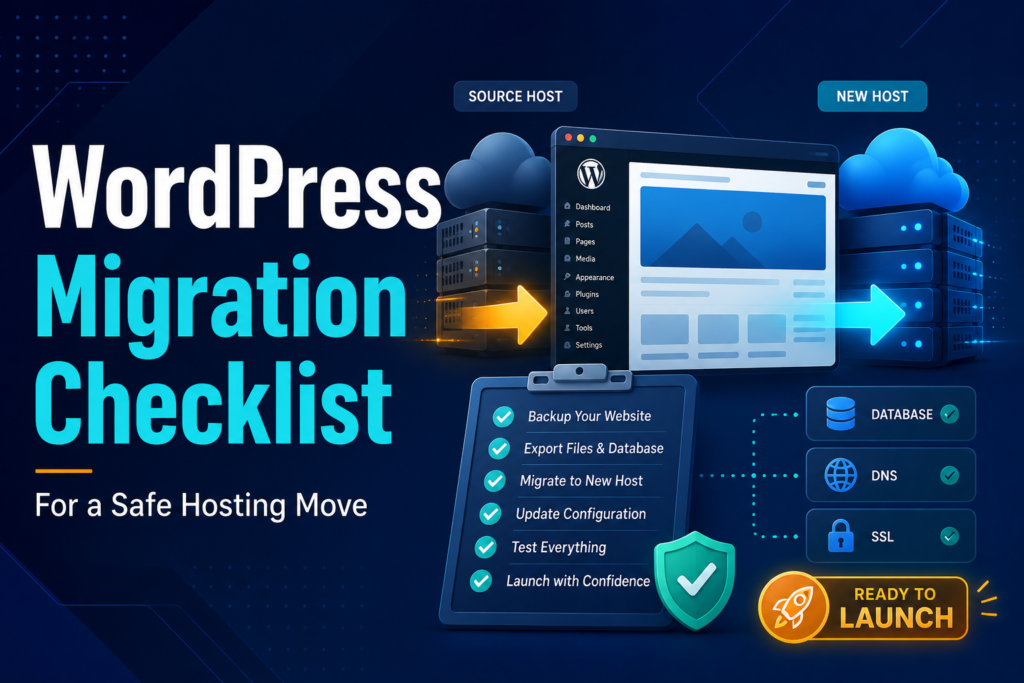
Moving a live WordPress site is not simply a matter of copying files and changing a DNS record. The site may depend on a database, scheduled tasks, email delivery, caching, redirects, security rules, and third party services that are easy to miss. A reliable WordPress migration checklist gives you a controlled way to protect the site, test the destination, and keep a clear rollback route if the launch does not go as planned.
This guide explains how to choose a transfer method, reduce downtime, protect search visibility, and test the new host. It covers business sites, WooCommerce, memberships, multilingual websites, and international operations.
What a WordPress hosting migration includes
A hosting migration keeps the public domain and page URLs the same while the infrastructure changes behind them. Files move to a different server, the WordPress database transfer is completed, the destination is configured, and DNS begins sending visitors to the new location.
WordPress has two core data areas. Files hold themes, plugins, media, configuration, and custom code. The database holds content, users, orders, settings, menus, and plugin data. The official WordPress backup guidance confirms that recovery normally requires both.
The move may also involve PHP versions, database versions, cron jobs, object caching, server redirects, SMTP, CDN settings, firewall rules, SSL, and domain records. A page can look correct while a form, checkout, scheduled task, or email process is already broken.
Google treats a hosting change with unchanged URLs differently from a site move that changes URLs. Its hosting migration guidance recommends testing the new infrastructure first, updating DNS, monitoring both servers, and closing the old host only after traffic has moved.
Choose the right migration method
Use the WordPress migration checklist to choose a method that matches the site’s size, activity, complexity, and business risk.
Plugin migration
A reputable plugin often suits a brochure site, portfolio, blog, or modest store. Check file limits, server timeouts, destination compatibility, and multisite support before relying on it.
Manual migration
A manual process gives a developer full control and suits large databases, custom server rules, command line workflows, and unusual directory structures.
Do not run a basic text replacement across a WordPress database. The official WordPress migration documentation warns that ordinary replacement can damage serialized data. The WP CLI search replace command handles serialized values and supports a dry run.
Managed WordPress migration service
A WordPress migration service suits an active store, membership site, large publisher, multisite network, or team without dependable technical support. Confirm that it includes staging, final data sync, DNS, rollback, email, CDN, and post launch checks.

WordPress migration checklist before the move
The pre launch WordPress migration checklist prevents most expensive mistakes. Complete these checks before copying production data.
1. Define the scope
Confirm whether the project changes only hosting or also changes the domain, URL structure, design, plugins, PHP version, or CDN. Google advises changing one major element at a time when practical, because combined changes make faults and ranking shifts harder to diagnose.
2. Choose hosting for the real workload
Compare resources, backup retention, data centre locations, staging, support, and scaling. A marketing site and a busy WooCommerce store need different hosting architecture.
Confirm support for required PHP extensions, database engine, cron, object cache, command line access, and deployment. Mahmud Jibon’s WordPress development service can help when migration forms part of a rebuild or performance project.
3. Confirm ownership and access
Record who controls the registrar, DNS, both hosts, CDN, WordPress, email, analytics, Search Console, and premium licences. The move can stall if nobody can approve DNS.
4. Test every credential
Test WordPress admin, SFTP or SSH, database, hosting panel, DNS, CDN, SMTP, analytics, and Search Console access. Where two factor authentication is active, make sure the authorised person is available during the launch.
5. Document the current environment
Record the WordPress version, theme, plugins, PHP version, database version, memory limits, cron jobs, redirects, caching, CDN, email method, and security rules. Save wp config, htaccess or Nginx rules, robots.txt, and verification files.
6. Capture a baseline
Record speed, server response, screenshots, forms, checkout, login, search, downloads, and key integrations. This creates a reliable comparison baseline.
7. Crawl and export the current URLs
Export URLs, status codes, canonicals, robots directives, metadata, internal links, redirects, images, and sitemaps. Add high traffic and conversion pages to the priority test list.
This step is central to any WordPress migration checklist designed to protect SEO rankings. It creates evidence for comparing the old and new environments.
8. Check compatibility
Review changes in PHP, MySQL or MariaDB, web server software, caching, and restricted plugins. Test necessary upgrades on staging. Avoid combining the migration with several untested production updates.
9. Remove unnecessary files
After review and backup, remove abandoned staging copies, obsolete archives, unused themes, inactive plugins, temporary exports, and cache files.
10. Back up all WordPress files
Include core, wp content, uploads, themes, plugins, custom files, wp config, server rules, and verification files. Store the copy away from the source. The official WordPress file backup instructions explain why file downloads do not normally include the database.
11. Export the database
Create a database export that matches the file backup. Active sites may need a command line export and a final export before launch. Keep the original untouched.
12. Test the backup
Check archive integrity, confirm that expected database tables exist, and perform a restore test for a commercially important website. A backup that cannot be restored does not reduce migration risk.

13. Lower DNS time to live
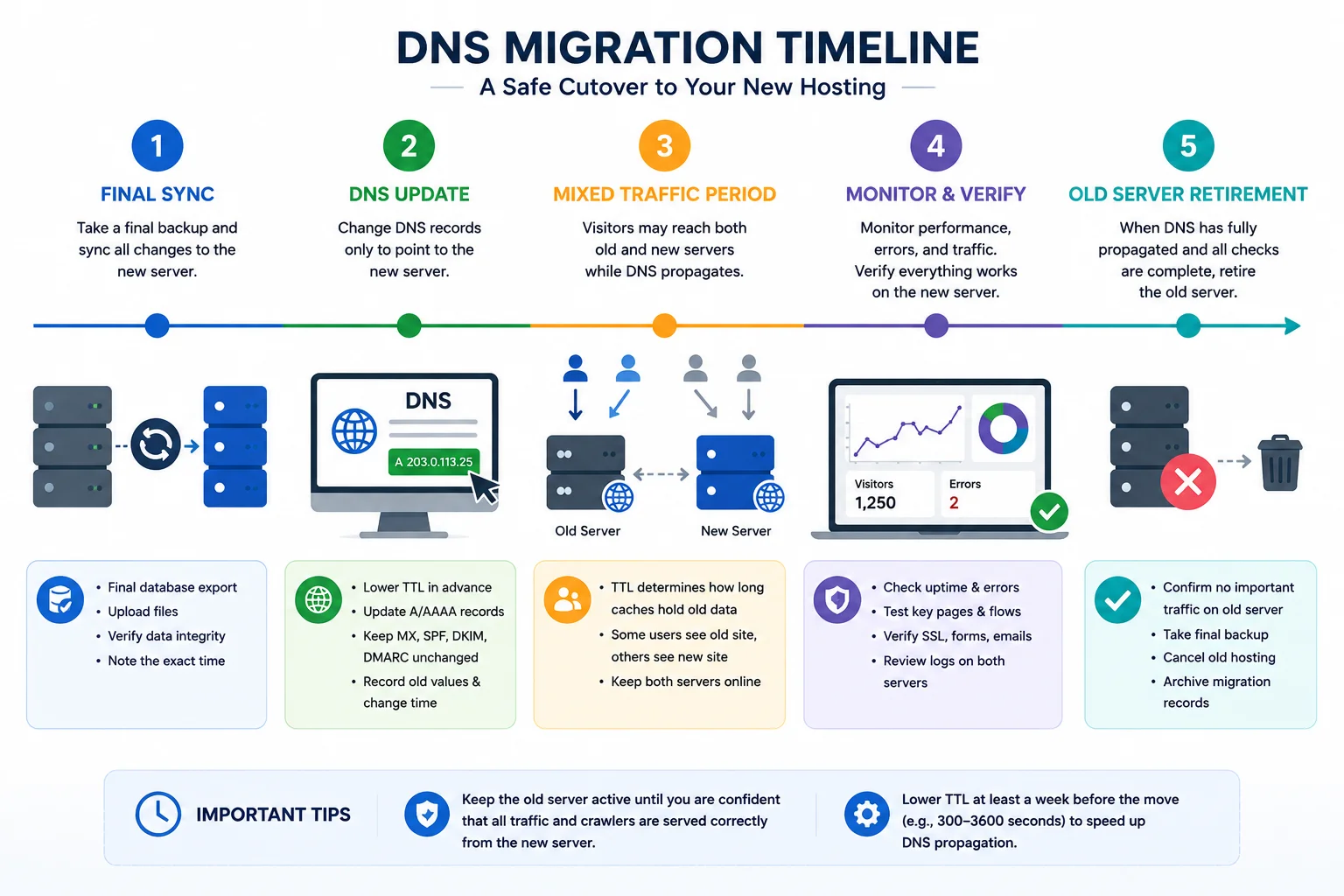
Lower the relevant DNS record time to live far enough in advance for the old value to expire. Google suggests doing this at least a week before the move and using a conservative low value, such as a few hours.
Export the full DNS zone first. Do not change MX, SPF, DKIM, or DMARC records unless email is also moving.
14. Build protected staging on the new host
Create the destination and test it through a temporary hostname, host file override, or provider preview tool. Use authentication where practical. If the staging hostname is public, add a noindex directive and remove it before launch. Google recommends testing before DNS changes and preventing accidental indexing of the test copy.

WordPress migration checklist during the move
The cutover WordPress migration checklist should follow a written sequence. Do not improvise while production data and DNS are changing.
15. Match the server environment
Set PHP, extensions, database, permissions, memory, uploads, cron, caching, and server modules before importing production data.
16. Transfer the files
Copy files with the chosen tool and review logs for failures, especially large uploads, must use plugins, and files outside the normal WordPress directory.
17. Import the database
Create the database and user, grant permissions, import the data, and confirm encoding and table prefixes. Avoid browser methods for imports likely to hit size or execution limits.
18. Update wp config
Set the new database name, user, password, host, security keys, environment variables, cache settings, and server specific constants. Review any hard coded paths or domain values.
19. Run safe search and replace
Use a serialization aware tool and start with a dry run. Replace only values that genuinely changed. Review page builder data, widgets, media URLs, custom fields, and plugin settings afterward.
20. Test through the production domain
A host file override lets authorised testers use the real domain while the public still reaches the old host. It exposes cookie, redirect, licence, and callback issues that a temporary URL may hide.
21. Test business critical journeys
Test forms, bookings, checkout, payments, shipping, tax, registration, accounts, search, downloads, languages, consent, and CRM connections. On transactional sites, confirm the test record, email, and external system response.
22. Plan the content freeze or final sync
A true zero downtime migration is difficult when visitors create data during the transfer. Orders, users, comments, form entries, and profile changes made after the first database copy can be lost.
Choose a short content freeze, maintenance window, final database sync, or specialist delta migration. Hosting documentation from Kinsta and WP Engine also recognises the need for maintenance or a second sync on active sites.
23. Create the final recovery point
Before cutover, take the final backup, sync live changes, and record the exact time.
24. Install and test SSL
Confirm certificate coverage, HTTPS response, forced HTTPS rules, and mixed content. Avoid redirect loops between WordPress, the host, and CDN
25. Update DNS
Change only the records required to send web traffic to the new infrastructure. Preserve email and verification records. Record the previous values and the time of the change so rollback remains possible.
What to test after moving a WordPress website
A working homepage does not mean the project is finished. The post launch WordPress migration checklist should compare the full site, business processes, search signals, and server behaviour.
26. Monitor both servers
Watch access and error logs, uptime, resources, and application monitoring on both hosts. During DNS propagation, visitors may reach either location. Google recommends keeping both environments available while traffic moves.
Check from several networks and customer regions. Do not rely only on the computer used to change DNS.
27. Run redirect and SEO checks
Repeat the crawl and compare URLs, status codes, canonicals, robots directives, metadata, internal links, sitemaps, images, structured data, and hreflang. Previous 200 pages should remain 200.
If URLs changed, map each old URL to its closest relevant destination using server side permanent redirects. The official Google site move guidance recommends 301 or 308 redirects where possible, warns against avoidable redirect chains, and advises keeping redirects for at least one year after a URL changing move.
Use Mahmud Jibon’s SEO service when the migration also needs crawl comparison, redirect mapping, or search monitoring. The guide to WordPress compared with other CMS options also helps when hosting changes form part of a broader platform decision.
28. Validate tracking, email, security, and performance
Confirm analytics, conversions, consent, Search Console, forms, transactional email, SMTP, cron, backups, security, firewall rules, CDN, object cache, and page cache.
Clear caches in a controlled order and test as a new visitor. Compare speed and server response with the original baseline.
29. Keep rollback available
The WordPress migration checklist should keep the old hosting available after the homepage first loads. Keep it until DNS has settled, logs show no important traffic reaching the old server, critical functions have passed, and the observation period is complete. Google advises shutting down the old infrastructure only when users and Googlebot are being served correctly from the new location.
Archive the final backup, migration log, DNS records, test results, credentials handover, and known issues. Remove temporary staging access, unused migration plugins, and obsolete firewall allowances.

WordPress migration checklist for international businesses
International sites need wider testing. Check major customer regions and confirm CDN routing, latency, geolocation, consent, languages, hreflang, local payments, tax, currency, and translated emails.
Review data processing, backup location, vendor terms, and contractual requirements with an appropriate adviser. Requirements vary by market and data type, so verify current rules before launch.
For a multilingual site, compare each language sitemap and a sample of equivalent pages. A migration can preserve the main language while breaking alternate media, canonicals, or language switcher links.
Common mistakes when moving WordPress hosting
Testing only the homepage
The homepage is usually public and heavily cached. Problems often hide in checkout, search, accounts, forms, webhooks, cron jobs, and admin actions. Test the business process, not only the design.
Copying files without the database
A files only transfer can leave content, users, orders, menus, and plugin settings behind. The WordPress migration checklist must treat files and database as a matched set.
Editing DNS without a zone export
A rushed change can remove email or verification records. Save the zone and change only the records required for the hosting move.
Promising zero downtime without data synchronisation
Low downtime is realistic for many sites. Zero downtime requires a plan for live writes during the transfer. The promise should match the site activity and migration method.
Migrating and redesigning together
A redesign may change content, HTML, links, schema, and performance. If traffic or conversions shift, it becomes difficult to separate hosting effects from design effects.
Cancelling the old host too early
DNS caches do not all refresh at once. Keeping the old site available provides continuity and a practical rollback route.
Final Thoughts
A safe hosting move is controlled infrastructure work. The WordPress migration checklist protects the site through backups and staging, careful synchronisation and DNS control, then functional, technical, and SEO testing.
A small brochure site may suit a reliable plugin. An active store, membership platform, multisite network, or international business usually deserves final data synchronisation, written rollback, and monitored launch. Choose by business risk, not only price.
Request a WordPress consultation to review your hosting setup, migration risks, launch plan, and post migration checks.
Frequently asked questions
How do I migrate a WordPress website without downtime?
Follow the WordPress migration checklist by testing the destination, lowering DNS time to live, keeping the old host online, and completing a final sync before DNS changes. A static site may move without visible interruption. A store or membership site may need a short freeze, maintenance window, or delta sync.
How long does a WordPress migration take?
A small site may transfer and test within a few hours. A large store, multisite network, or custom platform can require several days of preparation. Integrations, live data, DNS access, and stakeholder approval often matter more than file size.
Will moving WordPress hosting affect SEO?
A hosting change with unchanged URLs should not require redirects, but server errors, slow responses, blocked crawling, or missing metadata can affect visibility. Use the WordPress migration checklist to preserve content, compare crawls, monitor Search Console, and confirm that Googlebot can access the new host. Temporary crawl changes may occur after the move.
Do I need redirects when I move WordPress hosting?
Not when the domain and every URL remain the same. Redirects are required when the domain, protocol, subdomain, or page paths change. Each old URL should lead to its closest relevant new destination.
What should a website backup before migration include?
Include all WordPress files, the database export, wp config, server rules, DNS zone, email records, custom scripts, cron details, CDN settings, and access information for essential services. Keep files and database together as a matching recovery set.
Can I use a plugin for a large database transfer?
Possibly, but confirm plugin limits, server execution limits, storage, database size, and host compatibility. Manual command line transfer or a WordPress migration service is often more dependable for large, multisite, or heavily active websites.
How long should I keep the old hosting?
Keep it until DNS has settled, logs show no important traffic reaching the old server, critical functions have passed, backups are running, and the observation period is complete. Cancelling within a few hours is usually an unnecessary risk.