
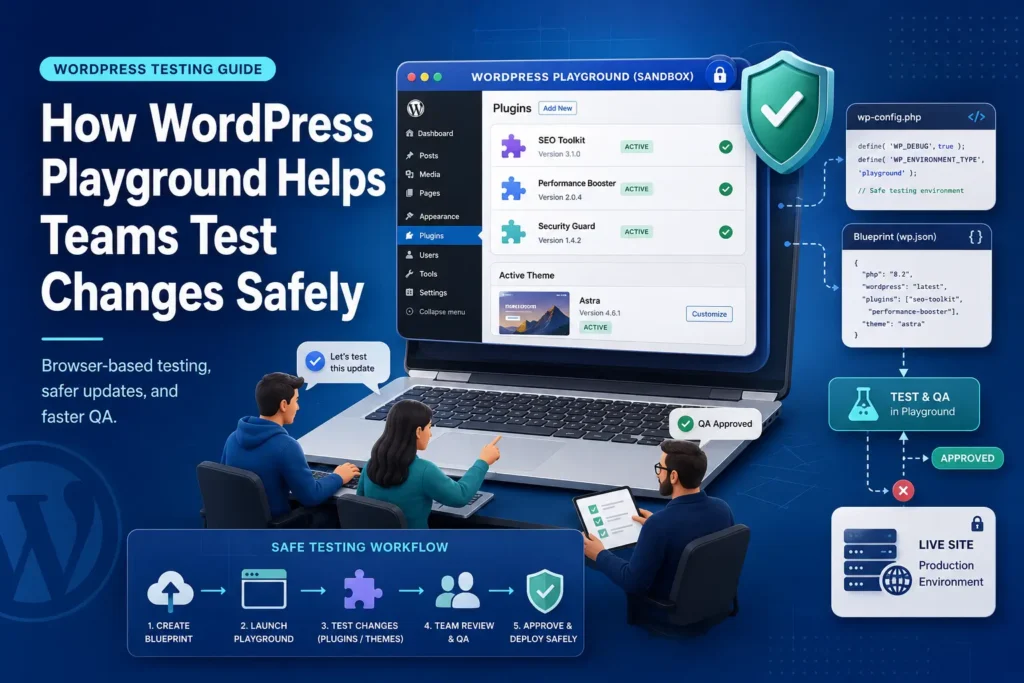
Testing a WordPress change should not begin with a nervous click on a production website. A plugin update can alter a checkout, a theme adjustment can move a mobile menu, and a PHP change can expose code that has not been reviewed in years. WordPress Playground testing gives teams a fast, isolated place to investigate those risks before a live site is touched.
This guide explains what WordPress Playground is, where it fits beside staging and local development, how agencies and website teams can use it for repeatable quality assurance, and where its browser environment is not realistic enough for final approval. The goal is not to replace every existing tool. It is to help you choose the lightest safe environment for each question.
What WordPress Playground is
WordPress Playground is an official WordPress project that can run a working WordPress instance without a conventional hosting account. In the browser version, the site opens in a tab and stays isolated from your live website. You can enter the dashboard, create content, install many themes and plugins, switch supported WordPress and PHP versions, and discard the experiment when you are finished.
That combination makes WordPress Playground testing useful for focused questions that do not yet justify a full staging build. Editors can explore the Site Editor, developers can reproduce a version issue, and agencies can share prepared client demos without asking anyone to install software.
It is also more than a temporary WordPress demo site. Teams can configure it through URLs and Blueprints, use it through a command line interface, embed it in products, and connect it with development workflows.

How WordPress works inside a browser
A normal WordPress website depends on a web server, PHP, a database, and a public or private network address. Playground packages the essential parts so they can run on the user device. The official browser architecture documentation explains that the browser build uses WebAssembly based PHP and SQLite because MySQL is not supported directly inside the browser.
The dashboard feels familiar, but the environment is not an exact copy of a production server. WordPress Playground testing can confirm many WordPress, PHP, theme, and plugin behaviours. It cannot prove that every server rule, database query, cache layer, mail service, scheduled process, or remote integration will behave identically on hosting.
Temporary, saved, and exported sites
New sites can be temporary, autosaved, or stored in browser storage. The official quick start guide explains that recent autosaves can appear in the Playground Dock, while a site can also be stored permanently in the browser or exported as a portable ZIP file. Browser storage still belongs to that browser profile, so it should not be treated as the only copy of valuable work.
Use temporary sites for disposable checks, saved sites for continuing work on one device, and exported files or version controlled setups for work that must survive devices and staff changes.
Where WordPress Playground testing fits in a professional workflow
A useful environment answers a specific question with enough realism to support a decision. WordPress Playground testing is strongest when speed and isolation matter more than production infrastructure fidelity.
Rapid plugin and theme evaluation
A team can inspect a plugin or theme before adding it to a managed website. WordPress Playground testing can cover dashboard usability, settings, blocks, templates, obvious conflicts, generated markup, and removal behaviour without activating an unfamiliar product on production.
WordPress and PHP compatibility checks
Playground can start a fresh site with selected supported WordPress and PHP versions. This helps teams screen compatibility and reproduce version specific errors. Supported versions change, so verify the current list in the official settings or Blueprint documentation before release.
Client demonstrations and staff training
A client can open a prepared WordPress Playground testing site, explore an editing pattern, and comment without receiving production access. Resettable examples also make staff training safer.
Pull request previews and code review
For plugin and theme repositories, the official pull request preview guide shows how a GitHub action can launch WordPress with proposed code installed. Reviewers can see the change before it is merged, connecting code review with practical quality assurance.
Repeatable demonstrations through Blueprints
A WordPress blueprint is a JSON setup file that can define versions, install components, import content, set options, log in a user, and open a chosen screen. It turns a verbal setup into a repeatable WordPress Playground testing environment.

Seven steps for a safe browser based WordPress testing workflow
Speed helps only when the test remains disciplined. This workflow keeps WordPress Playground testing focused and produces evidence another team member can understand.
- Define the decision before opening the tool. Write the question in one sentence, such as whether a plugin supports the editor workflow or a theme survives a PHP change. A vague test produces vague confidence.
- Create a controlled starting point. Choose and record the WordPress version, PHP version, language, theme, and essential plugins. Use a Blueprint when the setup will be repeated or shared.
- Use representative content. Use content that can expose problems, including long headings, varied images, tables, forms, empty states, user roles, products, and important custom post types. Empty sites hide real failures.
- Change one meaningful variable. Install one plugin, apply one update, or test one code branch at a time. Several simultaneous changes hide the cause of a failure.
- Run functional and editorial checks. Check the public site and administration experience, including navigation, forms, editor controls, responsive layouts, permissions, errors, saving, and rollback. Test the business journey, not only the settings screen.
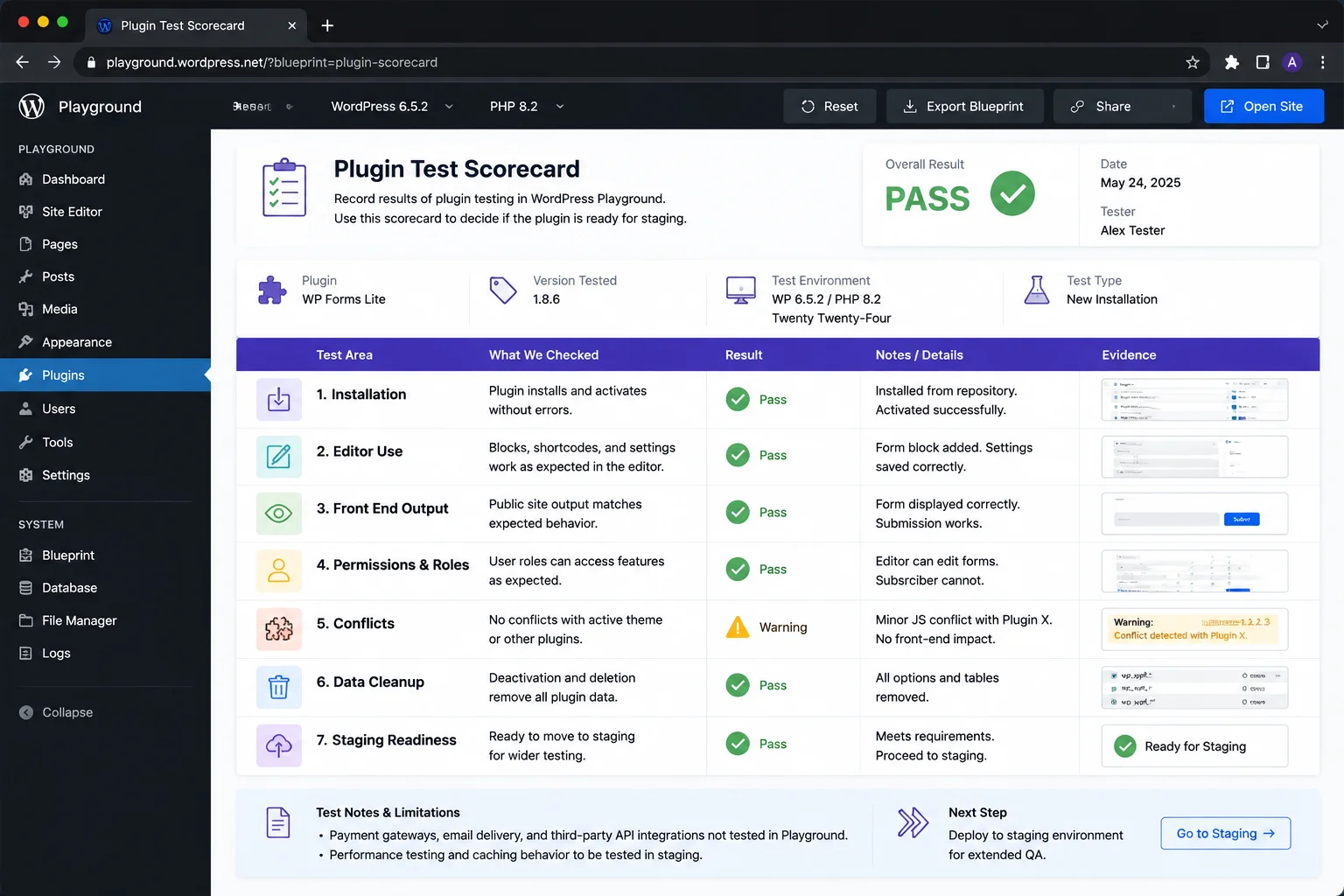
- Record evidence and limits. Record screenshots, versions, test data, expected and actual results, and known gaps. State when email, payments, caching, cron, or production data were not tested.
- Escalate the change to the right environment. Move low risk experiments to controlled implementation. Move important updates from WordPress Playground testing to realistic staging, then to production with a backup, rollback plan, and monitoring.
This turns WordPress Playground testing into a quality assurance layer rather than a casual experiment. It can reject a weak idea quickly, while final approval stays in the environment that matches the risk.

How to test WordPress plugins with WordPress Playground
The fastest route is to open Playground, enter the dashboard, and install a plugin from the WordPress directory or upload a plugin ZIP. The official testing overview also explains that themes, plugins, configurations, and different WordPress or PHP versions can be loaded for compatibility checks.
Start with the plugin requirement
Read the plugin page, changelog, documentation, and requirements. Record production versions, existing plugins, user roles, and critical journeys. WordPress Playground testing works best when compatibility is defined before installation.
Test installation, activation, configuration, and removal
Do not stop after activation. Check defaults, generated content, visible data changes, and unnecessary scripts or styles. Deactivate and remove the plugin, then inspect what remains. Some products are easy to install but costly to reverse.
Test the workflow that creates business value
Judge a form plugin on validation, confirmations, permissions, accessibility, and follow up. Check ecommerce extensions across product, cart, checkout, account, refund, and order administration. WordPress Playground testing can expose interface and compatibility problems, but payments, email, webhooks, tax, and fraud services still need staging.
Compare versions deliberately
For an update, create separate old and proposed environments with the same content and configuration. Compare both against written acceptance criteria rather than memory.
Protect client data
Use synthetic or carefully sanitised information. A private browser copy does not remove the need for privacy rules, access controls, and data minimisation. Do not copy sensitive customer records merely because the tool makes it convenient.
H2: WordPress Playground versus a traditional staging website
WordPress Playground is sometimes described as a WordPress staging alternative. That description is useful only when the word alternative refers to a particular task. It can replace staging for a quick isolated experiment. It should not replace a production like staging environment when the decision depends on hosting, data, traffic, integrations, or deployment behaviour.
| Decision factor | WordPress Playground | Traditional staging website |
|---|---|---|
| Setup | Usually opens quickly in a browser and can be prepared with a link or Blueprint. | Requires hosting resources, a copied site, configuration, and access management. |
| Isolation | Strong separation from the live website for disposable experiments. | Separated from production, but mistakes can still affect shared services or copied data. |
| Infrastructure realism | Uses browser based PHP and SQLite, so it does not match every production server. | Can closely match the production PHP, database, server, cache, network, and storage setup. |
| Data | Best with synthetic data, imports, prepared content, or a controlled browser copy. | Can use a sanitised clone of the real database and media library. |
| Integrations | Useful for many interfaces, but remote services and persistent callbacks may be limited or unrealistic. | Better for payment, email, webhooks, search, identity, analytics, and other connected services. |
| Performance testing | Useful for basic responsiveness and obvious front end weight, not production capacity decisions. | Better for server timing, cache behaviour, database load, background work, and realistic monitoring. |
| Collaboration | Excellent for links, demos, resettable training, and pull request previews. | Better for long running team acceptance, content entry, and launch rehearsals. |
| Deployment | Can export files or support development workflows, but it is not automatically the production release process. | Often connected to hosting deployment, database sync, backups, and rollback controls. |
| Best use | Fast discovery, compatibility screening, demos, training, reproducible examples, and code previews. | Final acceptance for important updates, integrations, migrations, and business critical releases. |
For most professional teams, the strongest model is layered. WordPress Playground testing handles early questions cheaply. Local development or automated tests handle code creation. Staging handles realistic acceptance. Production deployment follows a backup, rollback, approval, and monitoring plan. The WordPress backup handbook reinforces that files and the database both matter when a live site must be recoverable.
This layered approach also applies when choosing a platform. Mahmud Jibon’s WordPress versus other CMS guide can help teams decide whether WordPress is the right operating model before they invest in a detailed testing workflow. For projects comparing editing and development approaches, the WordPress versus Webflow comparison provides additional context.
Limits that teams need to understand
Safe WordPress Playground testing depends on knowing what the browser environment can and cannot prove.
SQLite is not MySQL or MariaDB
The browser build uses SQLite, while most hosted sites use MySQL or MariaDB. Custom queries, indexing, collations, large datasets, and database specific functions can behave differently. A plugin that passes WordPress Playground testing still needs realistic database testing when it performs unusual data work.
Browser storage is not a backup system
The official limitations page explains that autosaves are recovery points and browser storage can disappear. Export important work, and keep reusable code and configuration under version control.
Remote services can behave differently
A browser instance does not have the same persistent address and server environment as staging. Email, incoming webhooks, payment callbacks, scheduled jobs, licence checks, analytics, backups, and security tools may be incomplete or misleading.
Server rules and hosting services are outside the browser
WordPress Playground testing does not reproduce every web server rule, cache, content delivery network, firewall, file permission, process limit, queue, or host optimisation. It cannot certify infrastructure that it is not running.
Performance results need context
A browser sandbox can reveal excessive assets, slow editor behaviour, and obvious JavaScript errors. It cannot replace measurement of the real server, database, cache, network, devices, and traffic pattern. Use it to find concerns, not promise capacity.
Some command line and iframe behaviour is limited
Official documentation notes limits in browser WP CLI support and iframe behaviour. Verify the specific command, browser, and embedded experience required by the workflow.

How agencies and website teams can adopt Playground
WordPress Playground testing creates value when it removes repeated work and improves decisions. It creates noise when everyone uses a different setup and reports success without evidence.
Create a small Blueprint library
Build named configurations for common work, such as an agency starter theme with test content or a plugin compatibility matrix. Keep each Blueprint focused, reviewed, and stored with project documentation.
Define an environment ladder
Define what belongs in Playground, local development, automated testing, staging, and production. Allow early screening in WordPress Playground testing, require staging for connected services, and use a controlled release for database changes.
Use the same acceptance criteria everywhere
Keep the same acceptance criteria as work moves between environments. Mobile navigation, permissions, forms, accessibility, analytics, and rollback should not disappear because the tool changes.
Connect design review with technical review
A page can look correct while creating poor editing controls, inaccessible markup, or unexpected data. Include the right designers, developers, editors, and owners. Mahmud Jibon’s WordPress development service can connect testing with implementation, performance, maintainability, and deployment.
Keep evidence with the change
Attach the Blueprint, setup link, screenshots, results, issue notes, and approval to the project ticket or pull request. A test that cannot be reproduced has limited value.
Common mistakes with browser based WordPress testing
- Testing only the home page. Plugins and themes often fail in search, archives, forms, account areas, empty states, mobile menus, or the editor. Use the journeys that matter.
- Treating activation as compatibility. A plugin can activate cleanly and still damage content, permissions, performance, or another workflow.
- Using unrealistic content. Short placeholder paragraphs rarely expose overflow, image, table, translation, or accessibility problems.
- Changing several components together. The team loses the ability to identify the cause and may approve a combination that has never been isolated.
- Ignoring the environment difference. A pass in SQLite and browser based PHP is not proof of identical behaviour on the production database and server.
- Saving nothing. Temporary experiments disappear, and browser storage is not a reliable project archive.
- Skipping staging for a critical release. Playground reduces risk early. It does not remove the need for realistic final validation when revenue, data, or service continuity is involved.
Teams often confuse a convenient environment with complete assurance. WordPress Playground testing works best as one piece of evidence, not the whole decision.
How to decide which WordPress test environment to use
Choose the environment by the failure you need to prevent. WordPress Playground testing is a tool choice, not a risk assessment.
- Use Playground. For plugin discovery, theme experiments, editor training, content prototypes, WordPress and PHP screening, prepared demonstrations, and pull request previews.
- Use local development. For active coding, debugging, dependency management, version control, repeatable builds, and tests that need direct filesystem access.
- Use automated tests. For repeatable checks that should run on every change, especially unit, integration, and critical browser journeys.
- Use staging. For a production like copy with realistic data structure, integrations, server behaviour, permissions, content, and team acceptance.
- Use a controlled production release. For the final deployment with a current backup, rollback method, approved timing, monitoring, and named responsibility.
A brochure site may use a lighter ladder than a store or membership platform. Compare staging cost with the cost of failed checkout, lost submissions, broken content, or emergency recovery.
When the right workflow is unclear, contact Mahmud Jibon to review the site architecture, plugin dependencies, update process, team responsibilities, and release risk before a new testing system is introduced.
Final Thought
WordPress Playground makes safe experimentation much easier. It gives teams an immediate WordPress development sandbox for plugins, themes, content, versions, demonstrations, training, and code previews. Used well, WordPress Playground testing shortens feedback cycles and keeps many uncertain changes away from production.
Its value depends on honest boundaries. The browser uses different infrastructure from most hosted sites, storage needs care, and connected services or server behaviour may not be reproduced fully. Keep Playground for rapid discovery and repeatable screening. Move important changes into realistic staging before they reach a business website.
Set up a safer WordPress testing workflow with Mahmud Jibon. Build a practical environment ladder, repeatable test cases, staging controls, rollback planning, and clear approval steps around the risks that matter to your website.
Frequently asked questions
Can WordPress Playground replace a staging website?
It can replace staging for quick experiments, demonstrations, training, and early compatibility checks. It should not replace staging when results depend on the production database, hosting, payments, email, webhooks, caching, cron, real data, or deployment.
Is WordPress Playground testing safe for a live website?
A fresh Playground is isolated from production. Risk returns when a team imports private data, exports unreviewed code, or treats WordPress Playground testing as final approval. Apply normal privacy, security, backup, review, and release controls.
How do I test a WordPress update without using production?
Create a controlled site with the current theme, relevant plugins, representative content, and proposed version. Run the acceptance list and record gaps. Repeat important updates on production like staging before deployment.
Can I test premium plugins online with WordPress Playground?
A premium plugin may be uploaded as a ZIP when its licence allows it. Licence checks, remote services, build steps, or protected downloads may fail. Never expose private files or credentials in a Blueprint or setup link.
What is a WordPress Blueprint?
A Blueprint is a JSON configuration that selects versions, installs components, imports content, changes settings, logs in a user, and opens a chosen screen. It makes WordPress Playground testing repeatable.
Can Playground test plugin compatibility across PHP versions?
Yes. It can load supported PHP and WordPress versions for controlled comparisons. Final approval may still require the production database, server extensions, connected services, and hosting configuration.
Does WordPress Playground work without an internet connection?
Some experiences can continue after required assets are available, but installation, networking, remote resources, and browser behaviour vary. Test the exact device and workflow before relying on offline access.