
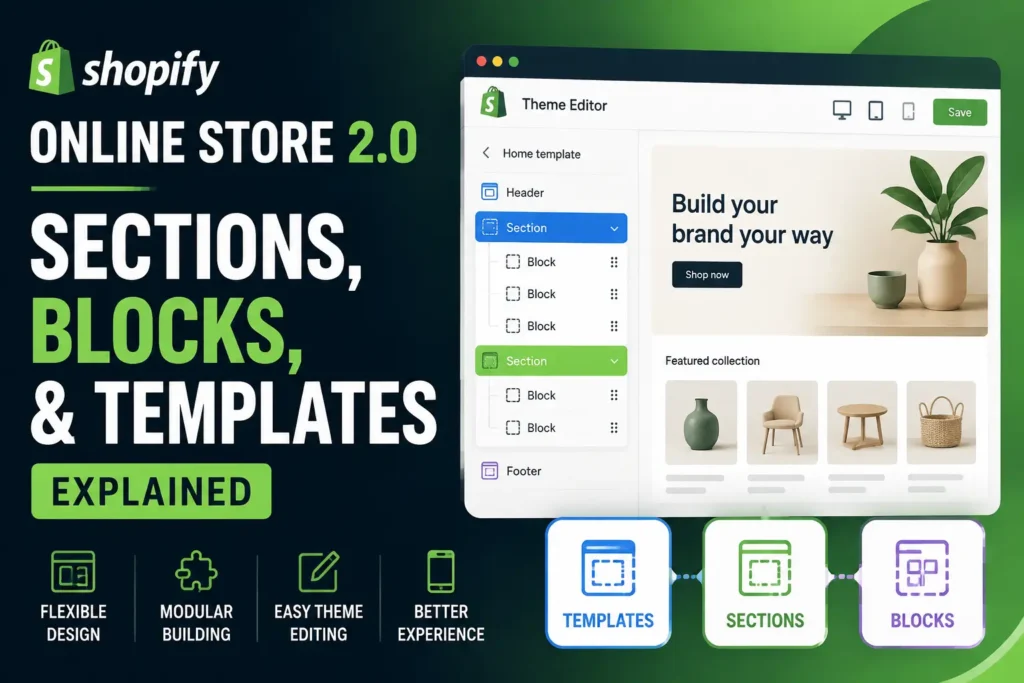
Shopify store editing can feel simple until you need two product layouts, a richer collection page, or a landing page that does not look like every other page in the theme. That is the problem Shopify Online Store 2.0 was designed to address. It gives merchants a more modular way to control page structure through templates, sections, blocks, app blocks, and dynamic data inside the theme editor.
The important part is understanding what each layer controls. Changing one shared template can affect many products at once. This guide explains how the system works, where its flexibility helps, and what to review before major theme changes.
What Shopify Online Store 2.0 Actually Changed
Shopify Online Store 2.0 is a theme architecture that makes storefront customization more modular. Shopify explains that many of its features rely on JSON templates, which act as structured containers for sections rather than holding all page markup themselves. Merchants can therefore add, remove, and reorder sections across many supported page types through the theme editor.
The older approach often tied more page structure directly to Liquid templates. With the newer architecture, page composition can be stored as configuration while reusable sections and blocks handle the actual content and rendering.
For merchants, the visible change is simple. Flexible sections are not limited to the homepage. Product, collection, page, blog, article, cart, and other supported templates can use modular sections when the theme has been built for them.
The architecture also supports dynamic sources, app blocks, metafields, section groups, and reusable theme blocks. Together, these features change how theme content is organized and edited.

Templates, Sections, and Blocks in Plain Language
The easiest way to understand the system is to think in layers. A template controls the page structure. A section is a larger content area inside that structure. A block is a smaller content unit inside a section.
Templates control the page type and layout variation
A product template might contain product information, an image banner, recommendations, and an FAQ. A collection template might use a banner, product grid, promotional content, and a newsletter section.
You can also create alternate templates for the same resource type. A fashion retailer could use one product template for standard items and another for products that need a size guide, editorial story, and care information. Shopify documents this ability to create multiple template versions and assign them to store resources.
Use a separate template when the structure changes. If only the content changes, metafields or dynamic sources are often cleaner.
Sections control larger content regions
Sections are reusable Liquid modules that can be added to supported JSON templates or section groups. Examples include image banners, featured collections, rich text, product information, newsletter forms, and recommendation areas.
Each section can expose settings for layout, images, alignment, spacing, and other controls chosen by the theme developer. That is why different Shopify themes can offer very different editing experiences even though both use Shopify Online Store 2.0.
Blocks control smaller pieces inside sections
A slideshow section might contain slide blocks. A product information section might contain title, price, variant selector, quantity selector, buy button, custom text, and app blocks.
Shopify now documents section blocks, reusable theme blocks, and app blocks. Section blocks belong to a specific section. Theme blocks can be reused across sections when supported. App blocks are provided by apps through theme app extensions.
Merchants should not assume every block can move anywhere. The theme author decides which blocks a section accepts and what settings are available.

How Shopify Online Store 2.0 Works for Shopify Merchants
Most merchants experience Shopify Online Store 2.0 through the theme editor. You select a page or template, review its structure, reorder or add sections, then adjust the blocks and settings inside each section. Shopify previews those changes as you work.
The editor is not a completely free form page builder. You still work within the components supplied by the theme. If a theme has no comparison section, no flexible media block, or no setting for a layout you need, you may require a custom section, an app, a different theme, or development work.
A well designed theme gives merchants useful freedom while protecting visual consistency.
For stores being built from the beginning, the existing Shopify Quick Start guide adds context around theme structure, product pages, navigation, apps, and launch priorities.
Dynamic sources reduce duplicate content work
Dynamic sources let compatible theme settings pull data from product attributes, metafields, and other supported custom data. Instead of creating a new template for every product, one product template can display product specific values.
A skincare store, for example, could keep one layout while ingredients, usage instructions, skin type guidance, and care details change by product. This is usually cleaner than duplicating templates simply to change text.

Practical Product Page and Collection Page Examples
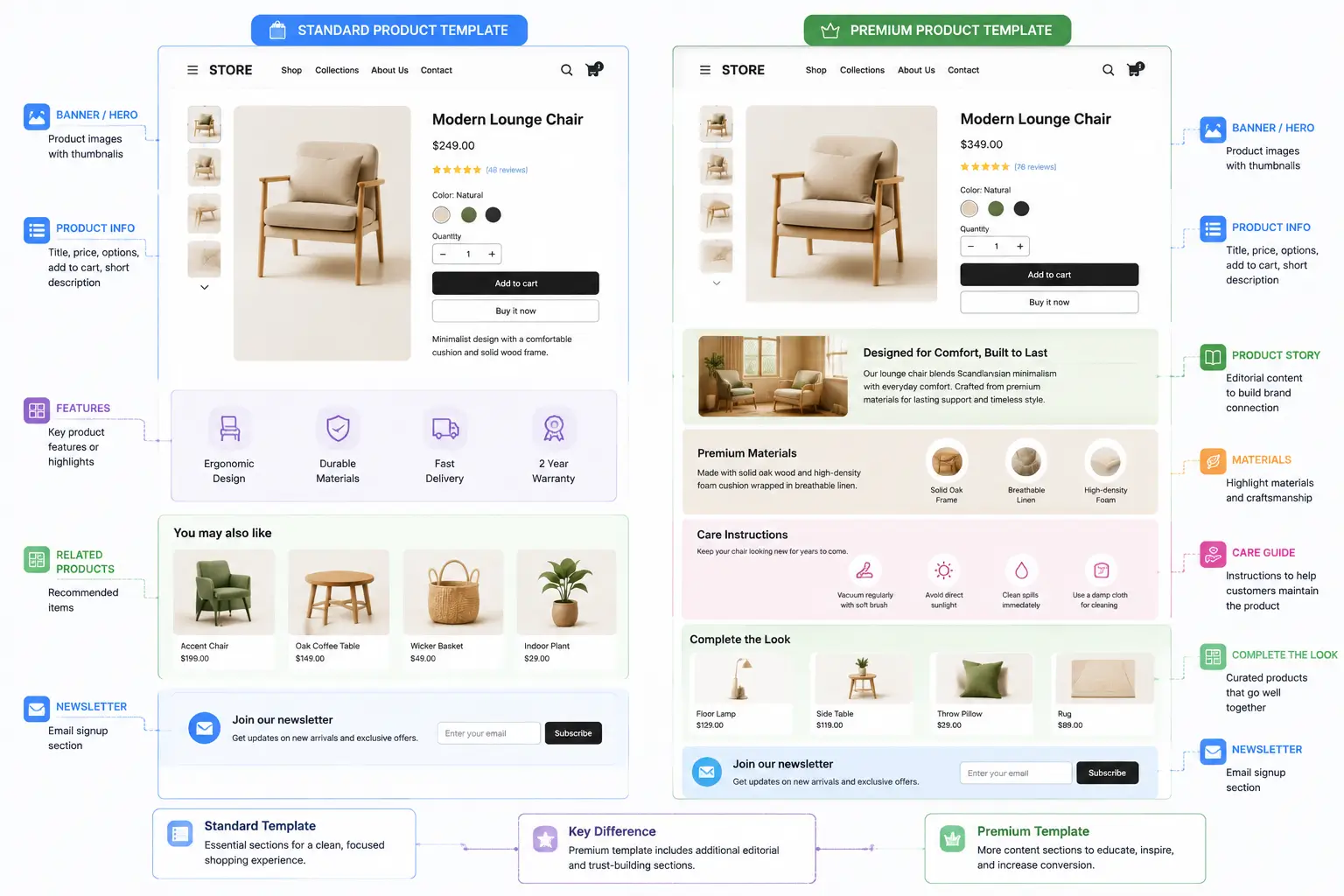
Example one, standard and premium product templates
Imagine a furniture store with standard products and a smaller premium range. Standard pages need images, price, variants, dimensions, delivery details, and related products. Premium pieces also need a designer story, material origin, care instructions, and a large editorial image.
A sensible setup is to use a standard product template and a premium product template, then assign products accordingly. Dynamic sources can supply material, designer, care, and origin details without creating a separate template for every item.
Example two, collection pages for different shopping intent
A general collection may need only a banner and product grid, while a seasonal campaign may need editorial content before and after the products. A separate campaign template is useful because the structure changes. Creating ten collection templates that differ only in one paragraph is usually unnecessary.
Benefits and Limitations of Shopify Online Store 2.0
The main benefit is controlled reuse. Merchants can build consistent page structures, reuse components, and make many content changes without asking a developer to edit template code each time.
Shopify states that JSON templates store the sections to render and their settings, while sections provide the Liquid markup and merchant controls. That separation supports cleaner, more maintainable theme architecture.
The limits are just as important. Each theme decides which sections exist, which blocks are accepted, and what settings merchants can edit. An Online Store 2.0 compatible theme can still feel restrictive if its component library is weak.
Checkout and gift card pages do not behave like ordinary storefront templates for section based customization. App blocks also need judgement. They can integrate app content cleanly, but too many widgets can create clutter, inconsistent user experience, and more scripts to manage.
Shopify Online Store 2.0 Best Practices for Store Owners
A flexible theme still needs design rules. These Shopify Online Store 2.0 best practices keep the editor useful without turning the store into a collection of unrelated layouts.
Build a small set of purposeful templates
Start with the page patterns the store actually needs. A clear default product template, one or two specialised product templates, a default collection template, and a small number of campaign templates are often easier to manage than dozens of near duplicates.
Use templates for structural differences. Use dynamic data when the layout stays the same but product facts change.
Treat sections as a design system
Reuse sections with consistent spacing, typography, button styles, image ratios, and content hierarchy. This makes the store feel deliberate and reduces the chance of awkward mobile layouts.
Keep blocks purposeful
Blocks should expose useful merchant controls, not every styling possibility. On important sections such as product information, confirm that the team can manage the content customers actually need, including variants, delivery details, sizing, specifications, trust content, and app features.
Use apps where they add real capability
If the theme already includes an accordion, recommendation area, banner, or popup that meets the requirement, another app may be unnecessary. Shopify explains that app blocks can integrate app content through theme app extensions without directly modifying theme code. That is useful, but overlapping widgets can still create clutter and extra scripts to manage.

Common Mistakes to Avoid
One common mistake is editing the wrong template. If several products share that template, a structural change can affect all of them. Confirm the assigned template before removing or rearranging sections.
Another mistake is solving a content problem with a layout solution. If one product needs different care instructions, a metafield or dynamic source is usually cleaner than creating a separate template.
Merchants also add too many sections simply because the editor makes it easy. Every section should answer a buying question, explain a benefit, reduce uncertainty, or help navigation.
Always review mobile before publishing. Image crops, long headings, buttons, sticky elements, app widgets, and reordered blocks can behave very differently on a small screen.
Finally, treat a theme change as a redesign and testing project. Different Shopify themes can use different settings, blocks, custom code, and app integrations, so layouts may not transfer exactly.
What Store Owners Should Review Before Using Shopify Online Store 2.0
If your current theme supports Shopify Online Store 2.0, inspect the templates you use most. Review sections, product information blocks, mobile controls, navigation, dynamic sources, and app blocks. The label Online Store 2.0 does not guarantee that a theme includes the components your catalogue needs.
If you use an older theme, Shopify states that upgrading is not mandatory. Migration makes sense when modular templates, easier editing, app integration, and maintainability justify the cost and testing involved.
Shopify documents several migration paths, including moving to a newer theme, installing an updated theme version, or manually migrating templates. Manual migration may require Liquid, HTML, CSS, and JavaScript work.
If you are still deciding whether Shopify is the right ecommerce platform, Mahmud Jibon’s WordPress versus Shopify comparison adds useful platform context.
For current technical details, use Shopify’s Online Store 2.0 documentation, theme structure guide, sections and blocks documentation, template documentation, and theme editor overview. Verify these sources again before publication because interface details and platform limits can change.

Final Thought
Shopify Online Store 2.0 gives merchants far more control over store structure than a rigid template model, but the real value comes from using that control carefully. Templates should define meaningful page patterns. Sections should form a consistent visual system. Blocks should make content easier to manage, not encourage unnecessary complexity.
For most store owners, the right question is not whether the architecture is flexible. It is whether the chosen theme exposes the right flexibility for the products, brand, team, and customer journey. Review the theme editor with your real catalogue in mind, test the layouts on mobile, and use dynamic data where content changes more often than structure.
Request a Shopify design review from Mahmud Jibon to assess your current templates, sections, blocks, product page structure, mobile experience, and theme flexibility before you commit to a larger redesign.
Frequently Asked Questions
What is Shopify Online Store 2.0?
Shopify Online Store 2.0 is Shopify’s modular theme architecture built around JSON templates, sections across supported page types, blocks, dynamic sources, and app blocks. It gives merchants more control in the theme editor while allowing developers to build reusable components.
What is the difference between a template, section, and block in Shopify?
A template defines page structure. Sections are larger content modules inside the template. Blocks are smaller configurable units inside sections. The exact options depend on the theme.
Can I use sections on every Shopify page?
Sections work across many storefront templates in compatible themes, but not every Shopify area behaves like a normal JSON template. Shopify notes exceptions such as gift card and checkout pages.
Do I need a different product template for every product?
Usually not. Create a new template when the structure changes. If only product information changes, metafields and dynamic sources are often a better fit.
Is Shopify Online Store 2.0 automatically better for conversions?
No. It provides design flexibility, not a conversion guarantee. Results still depend on product clarity, navigation, trust, mobile usability, page speed, offer quality, and how the theme is configured.
Can an older Shopify theme still be used?
Yes. Shopify states that upgrading is not mandatory. Migration is more compelling when a store needs modular templates, easier content editing, app blocks, or improved maintainability.
What should I check before choosing a Shopify Online Store 2.0 theme?
Review the sections available for product and collection templates, product information blocks, mobile behaviour, navigation, dynamic source support, app compatibility, and how much custom development your brand still requires.