
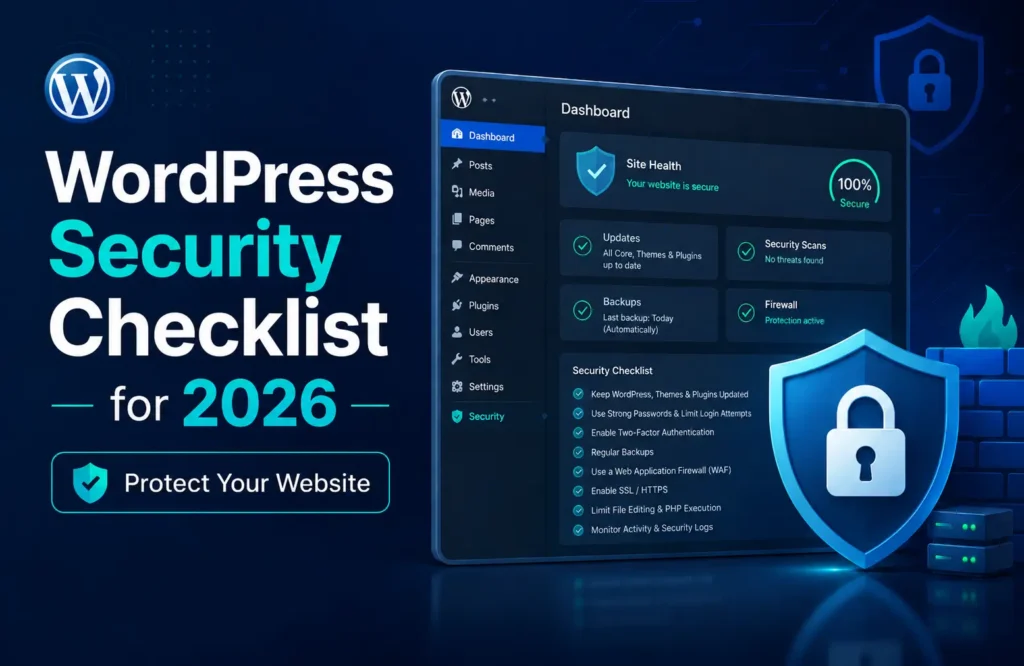
A WordPress website can look healthy while carrying serious security weaknesses. An old plugin may still function. A former contractor may still have administrator access. Backups may run every night without anyone checking whether they can be restored. These are ordinary operational gaps, and they are often more dangerous than the dramatic threats people expect.
This WordPress Security Checklist for 2026 gives business owners and website teams a practical way to reduce those risks. It explains which controls deserve immediate attention, where common advice falls short, how security needs change by website type, and what should be reviewed every month. The goal is not to promise perfect protection. It is to build sensible layers that make compromise less likely, limit damage, and support a clean recovery when something goes wrong.
What the WordPress Security Checklist for 2026 Means for Businesses
WordPress security is not a plugin setting. It reflects the condition of hosting, core, themes, plugins, accounts, integrations, backups, devices, and maintenance.
The official WordPress security guidance treats security as ongoing risk reduction with recovery planning. A firewall cannot replace a clean backup, and authentication cannot repair abandoned software.
As of August 5, 2026, WordPress 7.0.2 is the current stable security release listed by WordPress.org. It addressed one critical and one high severity issue. WordPress 7.1 was still in beta and not intended for production. Verify the stable version again before publication.
A current WordPress core does not compensate for weak hosting credentials, unsafe custom code, unmaintained extensions, excessive permissions, or a compromised recovery email. A secure WordPress website requires clear ownership across the full system. For broader platform context, read the WordPress for business guide.
WordPress Security Checklist for 2026: 21 Essential Checks
1. Assign Clear Security Ownership
Every business website needs a named owner for updates, access reviews, backups, alerts, and incident decisions. Shared responsibility often becomes neglected responsibility.
Document who controls the domain, hosting, DNS, CDN, WordPress, business email, security tools, and backup storage. Clients should retain ownership while agencies receive suitable working access.
2. Choose Hosting That Matches the Website Risk
A brochure site and a busy WooCommerce store need different security plans. Look for maintained server software, account isolation, HTTPS, reliable backups, staging, malware procedures, and WordPress capable support.
Managed hosting reduces work but does not remove owner duties. Clarify updates, malware response, backup retention, and recovery. The Mahmud Jibon hosting guide explains these responsibilities in more detail.
3. Enforce HTTPS Across the Entire Website
HTTPS protects data while it moves between the browser and the server. It should cover public pages, login screens, administration sessions, forms, customer accounts, and checkout pages.
Check for mixed content, insecure redirects, expired certificates, and integrations that still call insecure resources. WordPress can force secure administration through its official HTTPS guidance. A certificate alone is not enough if scripts or forms still use insecure connections.
4. Keep WordPress Core on a Supported Release
Updates are a core form of WordPress vulnerability protection because they replace known vulnerable code. WordPress advises keeping core, plugins, and themes current, and its automatic update documentation strongly discourages disabling security updates without a sound operational reason.
Automatic core updates suit many small sites. Complex stores and custom builds need backups, staging, compatibility testing, and a defined production window. Brief testing may be reasonable, but known security releases should not remain unapplied.
5. Create a Controlled Plugin and Theme Update Process
Automatic updates suit straightforward sites and well maintained extensions. Use more care when a plugin controls checkout, subscriptions, bookings, multilingual content, or custom data.
Classify extensions by business impact. Low risk plugins may update automatically. Test high impact plugins in staging, then check forms, checkout, login, email delivery, scheduled tasks, and analytics on the live site.

6. Remove Unused, Abandoned, and Untrusted Extensions
Inactive software still adds maintenance work and may remain accessible on the server. Delete plugins and themes that are not required. Keep one maintained fallback theme only when it serves a genuine recovery purpose.
Before installing a new extension, review its update history, support activity, compatibility, permissions, and reputation. Avoid pirated themes and plugins. A low purchase price is not worth losing update access, trusted source files, or confidence in the code package.
7. Apply Least Privilege to Every User
WordPress roles exist so users receive only the capabilities their work requires. An editor does not usually need administrator access. A freelance writer should not be able to install plugins. A temporary developer should not keep permanent access after delivery.
Use the official WordPress roles and capabilities documentation when assigning access. Review users monthly, remove dormant accounts, and limit Multisite Super Admin access to the few people who genuinely need it.
8. Give Each Administrator a Separate Account
Shared administrator accounts weaken accountability. When several people use one login, it becomes difficult to identify who changed a setting, installed a plugin, or exported data.
Create named accounts for each person. Never reuse the hosting password for WordPress. Store credentials in a reputable password manager, and make sure account recovery does not depend on a former employee or agency email address.
9. Require Two Factor Authentication or Passkeys
Two factor authentication adds a second proof of identity beyond the password. WordPress core does not currently include native two factor authentication, so businesses usually implement it through a reputable plugin, hosting identity system, or external access provider.
Require it for administrators, shop managers, developers, and anyone with sensitive access. The WordPress two step authentication guide explains the basic model. NIST authenticator guidance recognises properly configured WebAuthn credentials as phishing resistant, while manually entered one time codes do not provide the same protection.
10. Protect Login Surfaces From Automated Attacks
Use rate limiting, temporary lockouts, bot checks, and a WordPress firewall or edge security service. The official WordPress brute force guidance recommends strong passwords, two factor authentication, rate controls, monitoring, and edge filtering where practical.
Do not make the login page unusable for real staff. Aggressive country blocking may lock out travelling employees. CAPTCHA challenges can create accessibility and conversion problems. Start with measured controls, monitor false positives, and tighten rules when the evidence supports it.
11. Review XML RPC and Application Passwords
XML RPC may be required by publishing tools, integrations, or services such as Jetpack. Disabling it without checking dependencies can break legitimate functions. If it is not needed, restrict or disable it. If it is needed, apply rate limits and monitor abuse.
WordPress Application Passwords let integrations use separate, individually revocable credentials instead of a user’s main password. Name each credential clearly, use a low privilege account where possible, and remove it when the integration is retired.
12. Use a WordPress Firewall at the Right Layer
A web application firewall filters suspicious requests. Edge firewalls act before traffic reaches hosting. Endpoint firewalls operate inside WordPress and may have more application context.
One well configured WordPress firewall is often better than several overlapping security plugins. Choose the layer that fits the host, traffic, support model, and technical ability of the team.

13. Lock Down File Permissions and Server Access
File permissions should support necessary tasks without giving broad write access. The WordPress hardening guide recommends restricting write permissions as much as practical and using ownership settings appropriate to the host.
Use SFTP or SSH instead of unencrypted FTP. Remove old hosting users, rotate keys after staff changes, and restrict server access by role. Do not copy permission values from a random tutorial without understanding the hosting environment, because managed platforms and custom servers may require different ownership models.
14. Disable Dashboard File Editing
An administrator can normally edit plugin and theme files from the WordPress dashboard. If an attacker gains administrator access, that editor can provide a direct route to code execution.
WordPress supports the DISALLOW_FILE_EDIT constant in wp config.php to remove dashboard file editing. It does not stop every malicious upload, but it removes one convenient path. Use version control, SFTP, or deployment tools for code changes.
15. Protect Configuration Files, Secrets, and Database Access
The wp config.php file contains important database and security settings. Restrict access and never send copies through unsecured chat or email.
Database permissions should support reliable operation without unnecessary access, but changes require care because updates may alter structures. Changing the table prefix or hiding version information may reduce noise, yet WordPress warns that obscurity is not a sound primary strategy.
16. Back Up Both Files and the Database
A complete WordPress backup normally requires the website files and the database. The official WordPress backup documentation makes this distinction clear because downloading the WordPress directory does not usually capture the separate database.
Choose backup frequency according to acceptable data loss. Daily backups may suit a brochure site, while an active store may need far more frequent database copies. Keep one independent copy away from live hosting.
17. Test the Restore Process
A successful backup notification proves that a job ran. It does not prove that the archive is complete, clean, or restorable.
Restore backups in staging. Confirm pages, login, forms, orders, media, scheduled tasks, and integrations. Record the recovery time because revenue generating sites need a measurable recovery target.

18. Monitor Logins, Changes, Uptime, and Errors
Security monitoring should answer practical questions. Who logged in? Which plugin changed? Were administrator accounts created? Did important files change? Is the website returning errors? Are failed login attempts increasing?
Combine WordPress activity logging with hosting logs and external uptime monitoring. Alerts should go to a monitored address, not the same website that may be unavailable during an incident. Tune notifications so serious events are visible instead of being buried under routine noise.
19. Run Malware and Vulnerability Checks
Malware scanning looks for suspicious code, unexpected files, modified core files, malicious redirects, spam pages, and other indicators of compromise. Vulnerability monitoring checks installed software against known security disclosures.
Neither control is perfect. Signature based scans may miss new or customised malware. Vulnerability databases may report issues that do not affect the current configuration. Treat findings as evidence to investigate, not as automatic proof. When a site is compromised, preserve logs and backups before rushing to delete files.
20. Secure Administrator Devices and Recovery Channels
A perfectly configured website can still be compromised through an infected laptop, stolen browser session, exposed password vault, or breached email account.
Keep administrator devices updated, use screen locks and disk encryption, remove untrusted browser extensions, and avoid logging into critical accounts over shared computers. Protect domain, hosting, CDN, email, and password manager accounts with strong authentication. Website security is only as strong as the recovery path around it.
21. Maintain a Written Incident Response Plan
Do not wait for a compromise to locate domain access, backups, or emergency contacts.
Write a plan for containment, evidence, credential rotation, investigation, clean restoration, communication, and regulatory review. Include key providers and test a realistic scenario at least yearly.
How to Use the WordPress Security Checklist for 2026 by Website Type
The complete WordPress security checklist for business websites should match the value and sensitivity of the site. A five page brochure site does not need every enterprise control, while a busy store needs more than one security plugin and a daily backup.
Small Brochure Website
Prioritise managed hosting, HTTPS, automatic security updates, strong administrator authentication, daily backups, basic firewall protection, and low plugin complexity.
Lead Generation Website
Protect forms, email delivery, CRM connections, and administrator access. Confirm that backups include stored enquiries. The WordPress development service from Mahmud Jibon supports secure builds with maintainable structure and launch testing.
WooCommerce Store
Use frequent backups, staging, controlled updates, strong shop manager access, payment monitoring, and a documented recovery objective. The payment gateway does not protect customer accounts, order records, addresses, or integration credentials stored by the site.
Membership or Learning Platform
Focus on privacy, account recovery, permission boundaries, session behaviour, email security, and database recovery. Test updates because one conflict can affect enrolment or subscription access.
Agency Managed Portfolio
Use separate client accounts, central monitoring, documented ownership, standard build policies, and consistent offsite backups. The WordPress agency website checklist adds useful operational context.
Monthly WordPress Security Checklist for 2026 Maintenance Routine
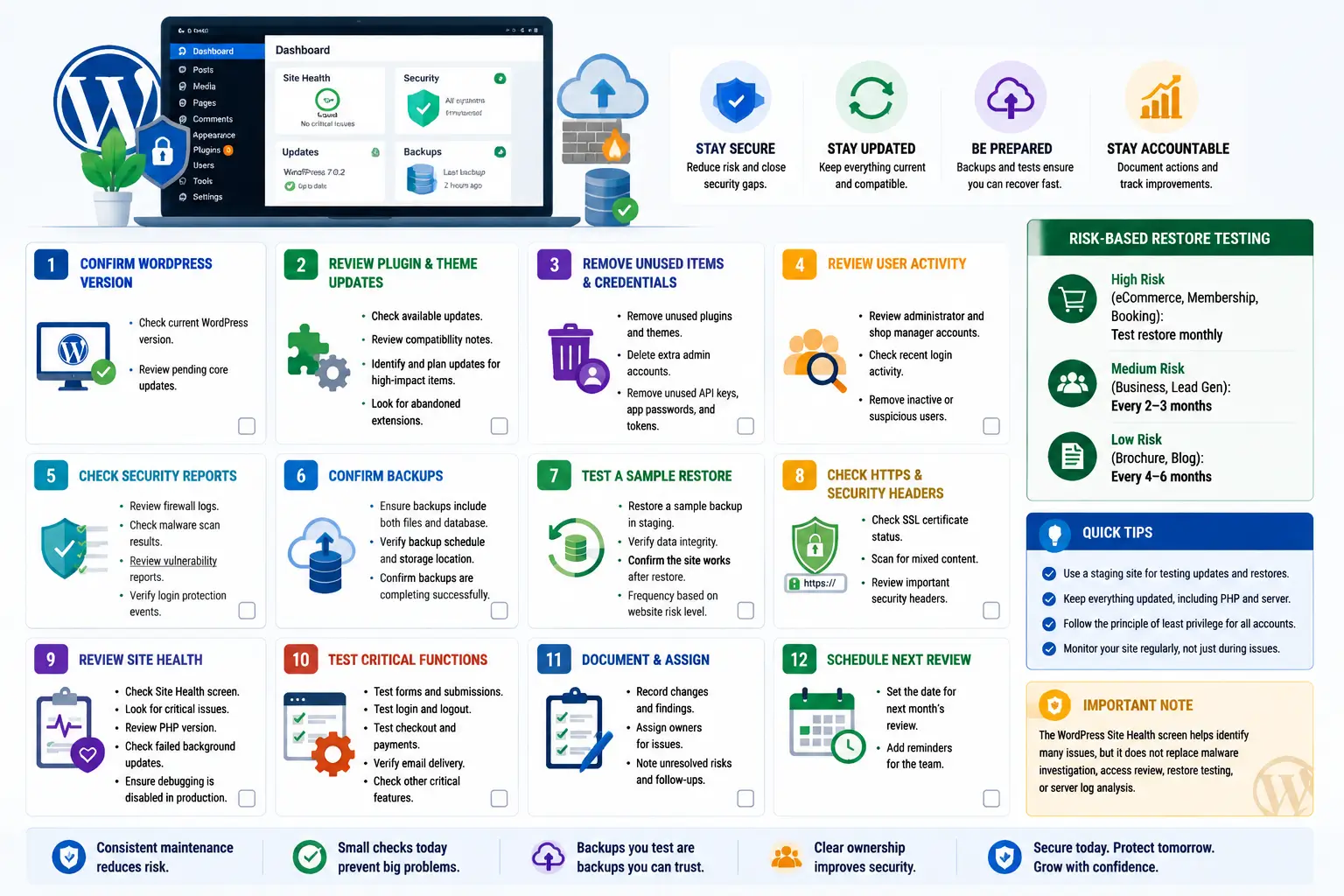
Use this WordPress Security Checklist for 2026 as a monthly operating routine. It should be short enough to complete and specific enough to reveal change.
- Confirm the current WordPress version and review pending core updates.
- Review plugin and theme updates, compatibility notes, and abandoned extensions.
- Remove unused plugins, themes, administrator accounts, API credentials, and application passwords.
- Review administrator and shop manager activity.
- Check firewall, malware scan, vulnerability, and login protection reports.
- Confirm that backups contain both files and the database.
- Test a sample restore according to the website risk level.
- Check HTTPS, certificate status, mixed content, and important security headers.
- Review Site Health for critical issues, outdated software, failed background updates, and exposed debugging settings.
- Test forms, login, checkout, email delivery, and other business critical functions after maintenance.
- Record changes, findings, owners, and unresolved risks.
- Schedule the next review before closing the task.
The WordPress Site Health screen can identify failed background updates, outdated PHP, exposed debugging, insecure HTTPS status, and pending updates. It does not replace malware investigation, access review, restore testing, or server log analysis.
How to Audit the WordPress Security Checklist for 2026
A WordPress security audit should produce decisions, not just a long scanner report. Use the WordPress Security Checklist for 2026 after defining the site’s business role, data sensitivity, acceptable downtime, and acceptable data loss.
Step 1. Build an Asset and Access Inventory
List the domain registrar, DNS, CDN, hosting, WordPress installations, staging sites, themes, plugins, user accounts, API connections, payment services, email tools, backup locations, and administrator devices. Identify the owner of each asset.
Step 2. Record the Current State
Export Site Health information, record software versions, capture the user list, review active integrations, and note update settings. Take a clean backup before making changes.
Step 3. Review Exposure and Controls
Check public login surfaces, XML RPC, REST API use, file permissions, wp config protection, server access, firewall rules, malware monitoring, password policies, two factor authentication, and recovery channels.
Step 4. Validate Recovery
Restore a recent backup to staging. Measure the time required and confirm that the restored site contains current files, database records, media, orders, users, and settings.
Step 5. Prioritise Findings by Business Risk
Fix exposed administrator accounts, known vulnerable software, missing backups, unsafe recovery email, and active malware first. Lower priority items such as changing a table prefix should not distract the team from controls that directly prevent access or support recovery.
Step 6. Create a Maintenance Plan
Assign each action to an owner and date. Separate immediate remediation from monthly maintenance. For a professional review, contact Mahmud Jibon with the hosting details, website type, known concerns, and access structure.
Common WordPress Security Checklist for 2026 Mistakes
Installing Several Security Plugins
Overlapping firewalls, scanners, and login controls can create conflicting blocks, repeated alerts, and uncertain responsibility. Choose a coherent stack and know which layer handles each risk.
Updating Directly on a Critical Live Site
Security updates matter, but untested changes can interrupt checkout, bookings, or membership access. Maintain backups, staging, monitoring, and a rapid approval process.
Trusting Host Backups Without Independent Access
Host backups may share the same account or incident boundary as the live site. Keep an independent copy the business can access if hosting is locked or compromised.
Giving Every Contributor Administrator Access
Administrator access is convenient until an account is phished, reused, forgotten, or shared. Use the lowest role that supports the person’s actual work, then elevate access temporarily when necessary.
Treating a Green Scanner as Proof of Security
Scanners cannot confirm ownership, staff behaviour, restore quality, commercial impact, or every custom code weakness. Use them as one part of the WordPress Security Checklist for 2026, not as the final verdict.
Hiding the Login URL and Stopping There
A changed login address may reduce basic bot noise, but it is not a substitute for two factor authentication, rate limiting, updates, monitoring, and strong recovery. Controls based mainly on secrecy can fail as soon as the hidden value is discovered.
Final Thought
The strongest WordPress security best practices are practical. Keep software supported, limit access, protect logins, filter hostile traffic, maintain independent backups, test recovery, and monitor meaningful changes.
Consistency is the difficult part. One abandoned plugin, forgotten administrator, or failed backup can weaken a secure WordPress website. Use this WordPress Security Checklist for 2026 as an operating routine, adjusted to the site’s value, data, integrations, and tolerance for downtime.
Request a WordPress security review from Mahmud Jibon to identify vulnerable software, weak access controls, backup gaps, monitoring issues, and practical priorities for your business website.
WordPress Security Checklist for 2026 Frequently Asked Questions
How often should I review the WordPress Security Checklist for 2026?
Run a focused review every month. Check urgent alerts, security updates, backups, and uptime more often. Stores and membership platforms may need daily monitoring.
What is the first step when learning how to secure a WordPress website in 2026?
Confirm ownership and access first. Make sure the business controls the domain, hosting, WordPress administrator, DNS, backups, and recovery email. Then take a complete backup, update known vulnerable software, and require strong authentication for privileged accounts
Does the WordPress Security Checklist for 2026 require a paid security plugin?
Not always. Managed hosting may already include server protection, backups, and monitoring. Higher risk sites may need advanced firewall rules, central logs, malware response, or specialist support. Buy the missing control, not the longest feature list.
How do I protect WordPress from malware and login attacks?
Keep core, themes, and plugins updated. Remove unused software. Require unique passwords and two factor authentication. Add rate limiting and firewall protection. Monitor logins and file changes. Maintain clean independent backups so recovery does not depend on the compromised environment.
Does the WordPress Security Checklist for 2026 recommend automatic updates?
Automatic security updates are appropriate for many simple sites. Complex websites should combine rapid updates with staging, backups, compatibility testing, and post update checks. Disabling all automatic updates without a reliable manual process creates unnecessary exposure.
How many backups should a WordPress business website keep?
Keep several recent backup sets in more than one location, including an independent copy. Frequency and retention should reflect acceptable data loss and the need to recover from an earlier clean point.
Is changing the WordPress login URL enough?
No. It may reduce low quality automated traffic, but it does not protect a discovered login page or a stolen administrator password. Use it only as a minor supporting measure within broader WordPress login protection.
What should a WordPress Security Checklist for 2026 audit include?
It should cover hosting, software, custom code, users, administrator devices, login protection, firewalls, malware checks, logs, permissions, credentials, backups, restore testing, and incident response. Findings should be ranked by business impact and assigned to clear owners.